CS2 Settings Guide
Optimal Counter-Strike 2 Settings for Competitive Play in 2025
Complete CS2 Settings Guide
Welcome to the most comprehensive Counter-Strike 2 settings guide for 2025. In CS2, proper settings configuration can dramatically impact your competitive performance. Unlike CS:GO, CS2 runs on the Source 2 engine, bringing new graphics features, improved netcode, and enhanced performance optimization options. This guide will help you configure every aspect of CS2 for maximum competitive advantage.
From launch options to video settings, from hardware recommendations to advanced configurations, we'll cover everything you need to optimize your CS2 experience. Whether you're upgrading from CS:GO or starting fresh in Counter-Strike 2, these settings will give you the competitive edge you need.
CS2 Launch Options
Launch options in CS2 allow you to optimize the game before it even starts. To set your launch options, go to your Steam Library, right-click on "Counter-Strike 2", select Properties, and enter them in the launch options field.
-novid -tickrate 128 -freq 240 +fps_max 0 -nojoyRecommended Launch Options Explained:
- -novid - Skips the intro video, getting you into the game faster
- -tickrate 128 - Sets offline server tickrate to 128 (for practice)
- -freq [Hz] - Forces your monitor's refresh rate (replace with 144, 240, 360, etc.)
- +fps_max 0 - Removes FPS cap for maximum performance
- -nojoy - Disables joystick support, freeing up resources
- -high - Sets CS2 to high priority (use with caution)
- -threads [number] - Manually sets CPU threads (usually not needed in CS2)
CS2 vs CS:GO Launch Options: Many CS:GO launch options like -high and -threads are no longer necessary in CS2 due to Source 2's improved resource management. CS2 automatically optimizes CPU usage better than CS:GO ever did.
CS2 Video Settings
CS2's Source 2 engine brings significant visual improvements over CS:GO, but competitive players still prioritize performance over graphics. Here are the optimal video settings for competitive play:

Example of optimized CS2 video settings for competitive play
Display Settings
Display Mode
Fullscreen - Best for performance and input lag
Avoid windowed modes as they increase input lag
Resolution
Native or 1280x960 - Depends on preference
Lower resolution = more FPS, but less clarity
Aspect Ratio
16:9 or 4:3 - Personal preference
16:9 for wider FOV, 4:3 stretched for larger models
Refresh Rate
Maximum available - 240Hz+ recommended
Higher refresh rate = smoother gameplay
Advanced Video Settings (Competitive)
- VSync: Disabled - Reduces input lag significantly
- NVIDIA Reflex Low Latency: Enabled + Boost - Reduces system latency
- Global Shadow Quality: Low - Better FPS, minimal visual impact
- Model / Texture Detail: Medium/High - Important for visibility
- Effect Detail: Low - Reduces visual clutter
- Shader Detail: Low - Better performance
- Particle Detail: Low - Less smoke/particle interference
- Ambient Occlusion: Disabled - FPS boost
- Anti-Aliasing: MSAA 2x or Off - Balance between clarity and FPS
- FidelityFX Super Resolution: Disabled or Quality - If you need FPS boost
Pro Tip: CS2's NVIDIA Reflex is a game-changer. Enable it with boost mode for the lowest possible system latency. This is one of the most important settings for competitive play.
CS2 Audio Settings
CS2 features improved spatial audio compared to CS:GO. Proper audio settings are crucial for competitive play as they help you accurately pinpoint enemy positions.
Recommended Audio Configuration
- Audio Device: Your headset/speakers
- Audio Output Configuration: Headphones (not speakers)
- Advanced 3D Audio Processing: Yes - Better positional audio
- Enable Voice: Yes (Press to Talk recommended)
- Master Volume: 0.5-0.7 - Adjust to comfort
- Voice Scale: 0.4-0.5 - Balance between comms and game sounds
Console Commands for Audio:
snd_headphone_pan_exponent "1.2"  // Better sound positioning
snd_front_headphone_position "45.0"  // Optimal for most headphones
snd_musicvolume "0"  // Disable music for better focus
CS2 Autoexec Configuration
An autoexec file allows you to automatically execute custom settings and binds every time CS2 launches. Here's how to set it up and what to include:
Creating Your Autoexec.cfg
- Navigate to:
Steam/steamapps/common/Counter-Strike Global Offensive/game/csgo/cfg/ - Create a new file named
autoexec.cfg - Add your custom commands (see example below)
- Add
+exec autoexecto your launch options
Recommended Autoexec.cfg for CS2
// CS2 Autoexec Configuration 2025
// Network Settings
rate "786432"  // Maximum data rate
cl_updaterate "128"
cl_cmdrate "128"
cl_interp "0"
cl_interp_ratio "1"

// Performance Settings
fps_max "0"  // Uncapped FPS
r_fullscreen_gamma "2.2"  // Brightness
mat_monitorgamma "1.6"

// Viewmodel Settings
viewmodel_fov "68"  // Maximum FOV
viewmodel_offset_x "2.5"
viewmodel_offset_y "2"
viewmodel_offset_z "-2"
viewmodel_recoil "0"  // Disable viewmodel recoil

// Crosshair (adjust to preference)
cl_crosshairalpha "255"
cl_crosshaircolor "1"
cl_crosshairdot "0"
cl_crosshairgap "-3"
cl_crosshairsize "2"
cl_crosshairstyle "4"
cl_crosshairthickness "0.5"

// Radar Settings
cl_radar_scale "0.4"  // Zoom level
cl_radar_always_centered "0"  // See full map
cl_radar_icon_scale_min "0.6"

// HUD Settings
cl_hud_radar_scale "1.0"
cl_hud_color "1"  // Orange HUD
safezonex "1"
safezoney "1"

// Bob and View Settings
cl_bob_lower_amt "5"
cl_bobamt_lat "0.1"
cl_bobamt_vert "0.1"

// Mouse Settings
m_rawinput "1"  // Raw input enabled
sensitivity "1.0"  // Adjust to your preference
zoom_sensitivity_ratio_mouse "1.0"

// Sound Settings
snd_musicvolume "0"
snd_headphone_pan_exponent "1.2"
snd_front_headphone_position "45.0"
snd_mute_losefocus "0"

// Miscellaneous
cl_autowepswitch "0"  // Don't auto-switch weapons
cl_use_opens_buy_menu "0"  // E doesn't open buy menu
cl_disablefreezecam "1"
cl_showloadout "1"
cl_teamid_overhead_always "1"

// Jump Throw Bind (V key)
alias "+jumpthrow" "+jump;-attack;-attack2"
alias "-jumpthrow" "-jump"
bind "v" "+jumpthrow"

// Clear Decals Bind (shift+walk)
bind "shift" "+sprint; r_cleardecals"

// Volume Toggle
alias "volmax" "volume 1; alias voltoggle volmin"
alias "volmin" "volume 0.1; alias voltoggle volmax"
alias "voltoggle" "volmax"
bind "F1" "voltoggle"

// Practice Mode Binds
bind "F3" "sv_cheats 1; god; sv_infinite_ammo 1; ammo_grenade_limit_total 5"
bind "F4" "sv_cheats 0; god; sv_infinite_ammo 0; ammo_grenade_limit_total 4"

echo "Autoexec loaded successfully!"
Important Note: CS2's autoexec path is different from CS:GO! Make sure you're placing the file in the correct CS2 directory: game/csgo/cfg/ not just csgo/cfg/
Aspect Ratio & Resolution Guide
The aspect ratio debate continues in CS2. While this is often called "personal preference," there are distinct advantages to each option that can impact your gameplay.
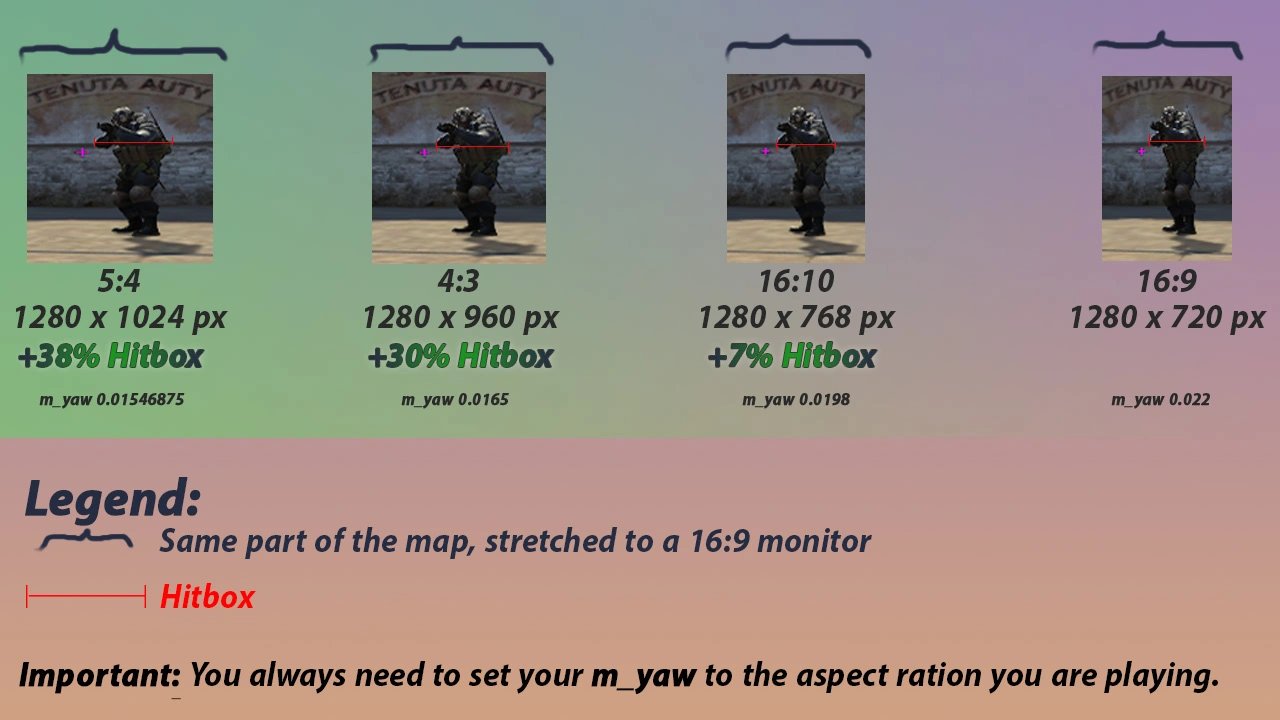
Visual comparison: 4:3 Stretched (left) vs 16:9 Native (right)
16:9 (Native Widescreen)
Advantages:
- Maximum field of view (FOV)
- Native resolution looks sharpest
- Best clarity and detail
- See more of your peripheral vision
Recommended for: Players who value awareness and prefer modern gaming visuals
Popular resolutions: 1920x1080, 2560x1440
4:3 Stretched
Advantages:
- Enemy models appear wider (easier to hit)
- Better performance (higher FPS)
- More focus on center of screen
- Traditional CS feel for veterans
Recommended for: Players prioritizing aim over awareness, CS:GO veterans
Popular resolutions: 1280x960, 1024x768
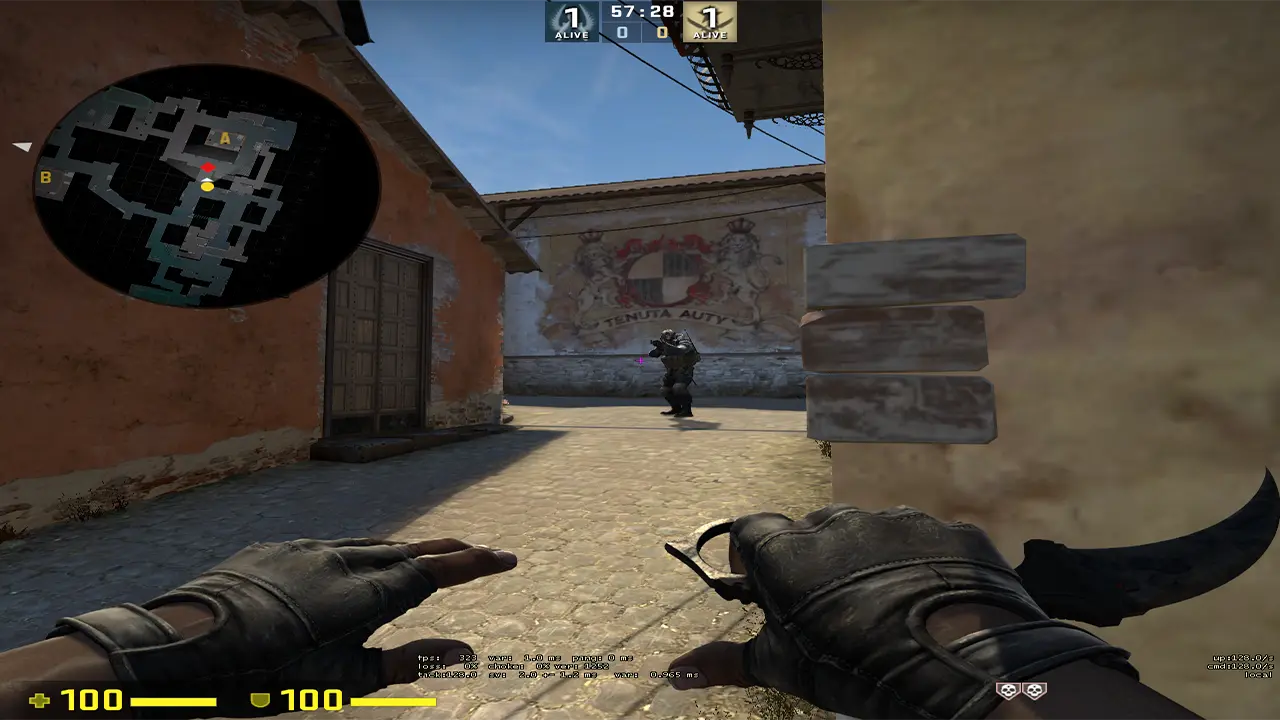
4:3 Stretched - Notice wider player models
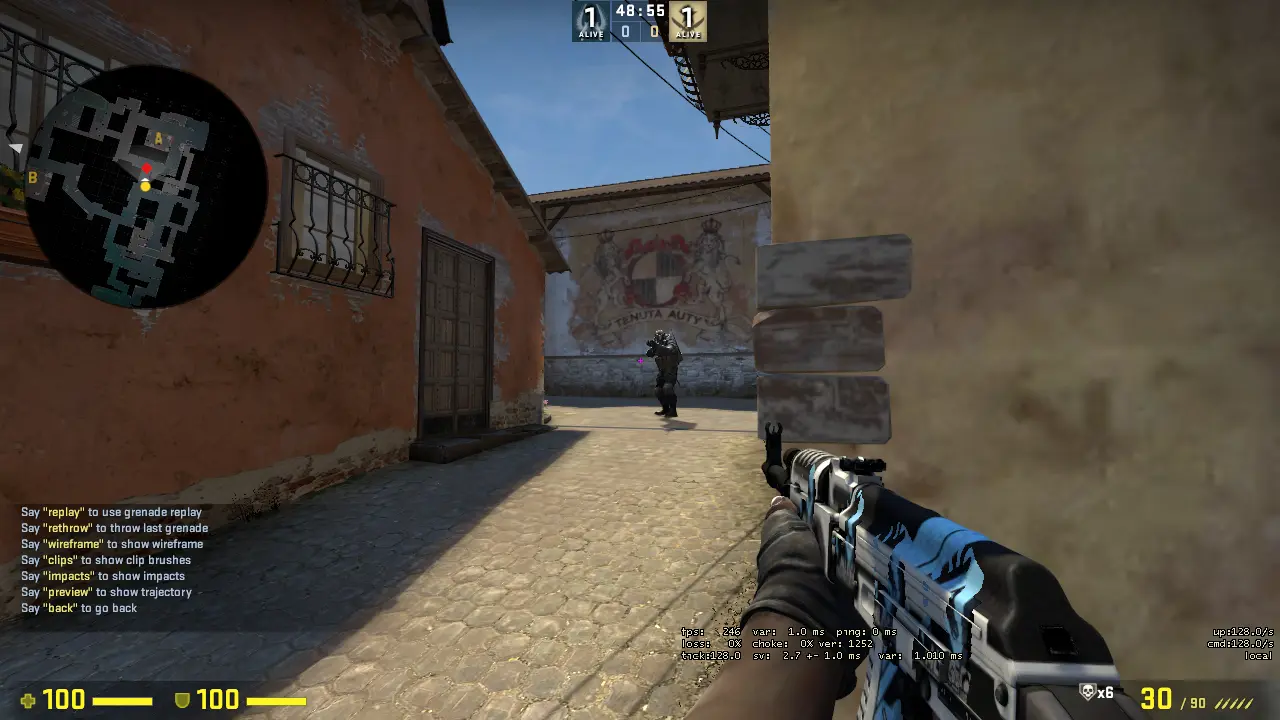
16:9 Native - Notice wider field of view
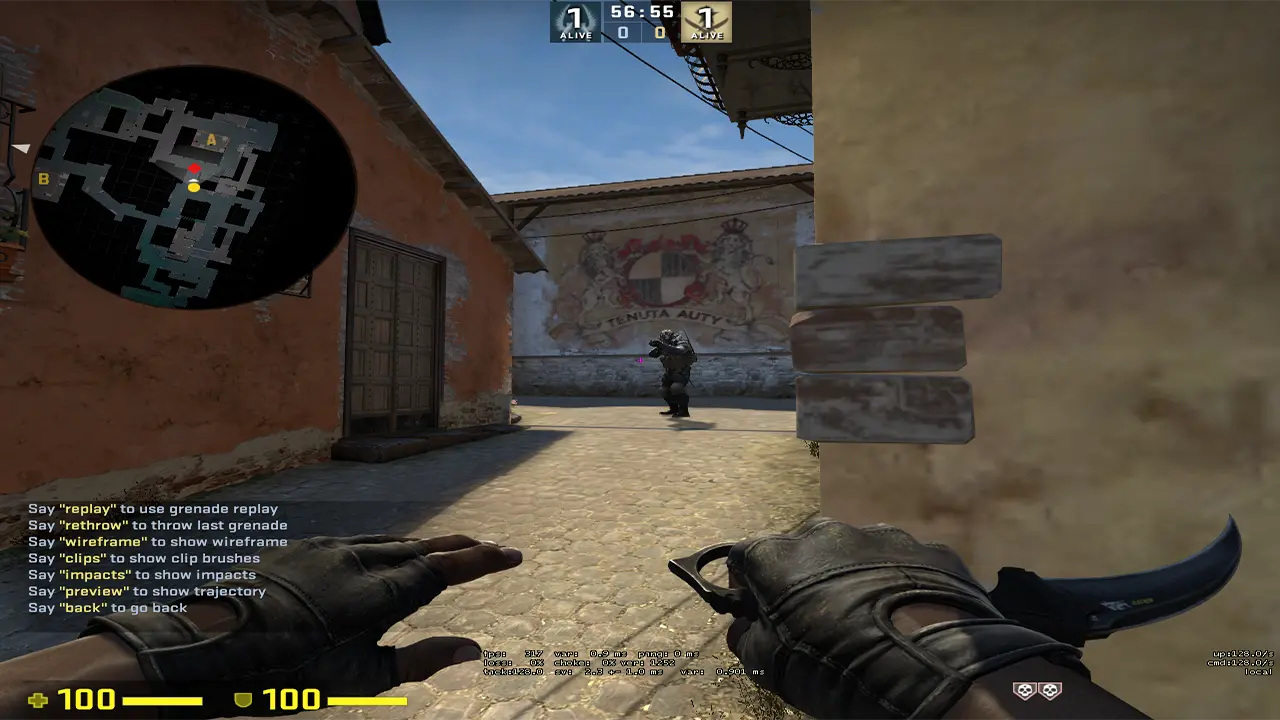
Different angle comparison
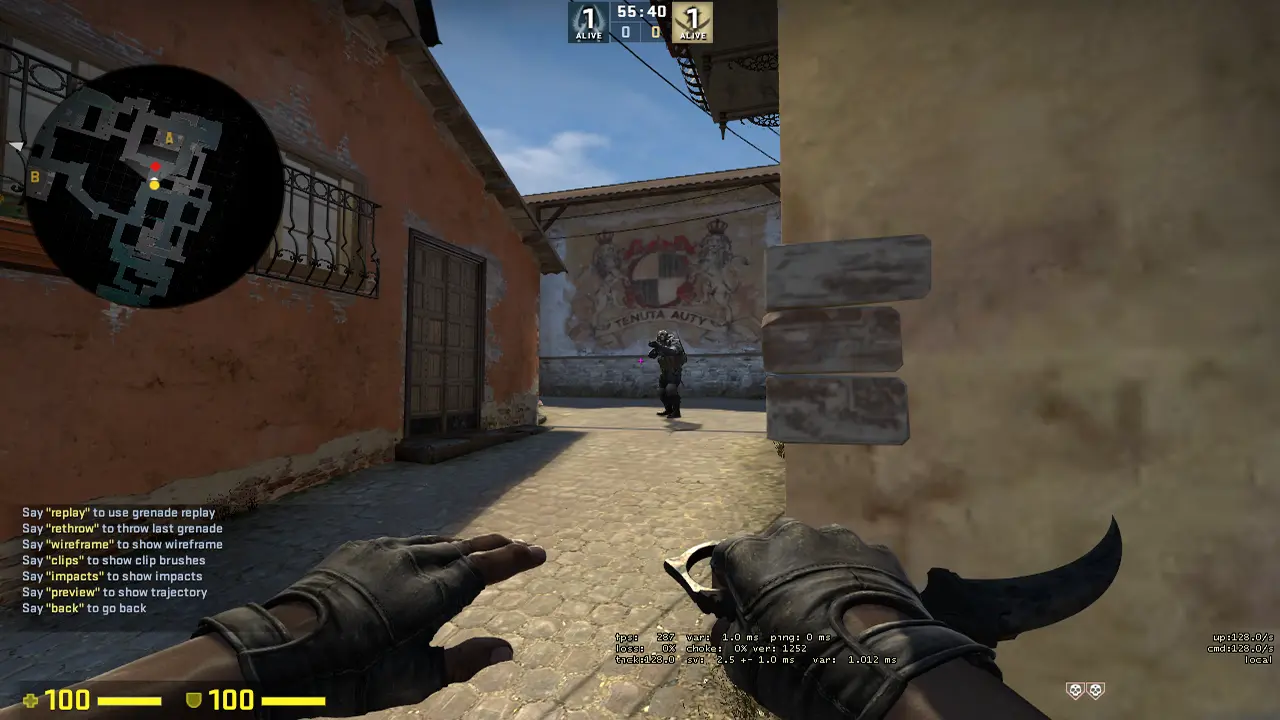
In-game visibility comparison
How to Enable Stretched in CS2
NVIDIA Users:
- Right-click desktop → NVIDIA Control Panel
- Display → Adjust desktop size and position
- Select your monitor
- Scaling mode: Full-screen
- Perform scaling on: GPU
- Apply and test in CS2
AMD Users:
- Right-click desktop → AMD Radeon Software
- Display → GPU Scaling: On
- Scaling Mode: Full Panel
- Apply and test in CS2
Hardware Recommendations 2025
Your hardware significantly impacts your competitive performance in CS2. While CS2 is more demanding than CS:GO due to Source 2, proper hardware can give you a substantial advantage.
Essential Hardware for Competitive CS2
Gaming Mouse
Recommendations:
- Logitech G Pro X Superlight (63g)
- Razer Viper V3 Pro
- Finalmouse UltralightX
- Zowie EC2-CW
Key specs: Under 70g weight, wireless with low latency, good sensor (3390 or better)
Monitor
Minimum: 240Hz | Ideal: 360Hz+
Recommendations:
- ZOWIE XL2566K (360Hz, 24.5")
- BenQ ZOWIE XL2546K (240Hz)
- ASUS ROG Swift PG259QN (360Hz)
Key specs: 1080p, 240Hz+, 1ms response time, low input lag
Headset
Recommendations:
- HyperX Cloud II
- SteelSeries Arctis Pro
- Beyerdynamic DT 990 Pro
- Audio-Technica ATH-M50x
Key specs: Good positional audio, comfortable for long sessions, clear sound
Keyboard
Switch preference varies
Recommendations:
- Logitech G Pro X TKL
- Ducky One 3
- Wooting 60HE (Analog)
- Razer Huntsman V3 Pro
Key specs: Mechanical switches, TKL or 60% layout, consistent actuation
PC Specifications for CS2
Minimum for 240Hz (240+ FPS)
- CPU: Intel i5-12400F / AMD Ryzen 5 5600X
- GPU: RTX 3060 / RX 6600 XT
- RAM: 16GB DDR4-3200
- Storage: NVMe SSD (500GB+)
Recommended for 360Hz+ (500+ FPS)
- CPU: Intel i7-14700K / AMD Ryzen 7 7800X3D
- GPU: RTX 4070 Ti / RX 7800 XT
- RAM: 32GB DDR5-6000
- Storage: Gen 4 NVMe SSD (1TB+)
NVIDIA Control Panel Settings for CS2
Optimizing your NVIDIA settings can significantly reduce input lag and improve performance. Here are the optimal settings for CS2:
3D Settings for CS2
Path: Desktop Right Click → NVIDIA Control Panel → Manage 3D Settings → Program Settings → Counter-Strike 2
- Image Scaling: Off
- Low Latency Mode: Ultra (or On if GPU < RTX 20-series)
- Max Frame Rate: Off (let CS2 control it)
- Power Management Mode: Prefer Maximum Performance
- Texture Filtering - Quality: High Performance
- Vertical Sync: Off (critical for low latency)
- Shader Cache: On
- Triple Buffering: Off
NVIDIA Reflex: This is the most important setting for CS2. Enable it in-game (Video Settings → Advanced → NVIDIA Reflex Low Latency → Enabled + Boost) for the lowest possible system latency.
Optimal Keybinding Guide
Proper keybindings are crucial for quick reactions and efficient gameplay. Here are the recommended keybindings used by professional CS2 players:
Movement & Actions
- W A S D - Movement (keep default)
- Shift - Walk (+ clear decals bind)
- Space - Jump
- Ctrl - Crouch (toggle or hold)
- E - Use/Interact
- Q - Quick switch (or last weapon)
- R - Reload
- G - Drop weapon
Grenades & Utility
- 4 - HE Grenade (individual bind)
- Z - Smoke Grenade (recommended)
- X - Flashbang (recommended)
- C - Molotov/Incendiary (recommended)
- V - Jump throw bind (essential)
- T - Inspect weapon
- B - Buy menu
Weapon Binds
- 1 - Primary weapon
- 2 - Secondary (pistol)
- 3 - Knife/Melee
- Scroll Up - Jump (optional bind)
- Scroll Down - Disabled (prevents accidents)
- Pro tip: Unbind scroll for weapon switching!
Communication
- K - Voice chat (push-to-talk)
- Y - Team chat (text)
- U - All chat (text)
- Tab - Scoreboard
- M - Buy menu (alternate)
- F1 - Volume toggle (custom bind)
Pro Player Setup: Most professional CS2 players use individual grenade binds (Z, X, C, V) instead of cycling through grenades with "4". This allows instant access to the exact utility you need in clutch situations!
Crosshair & Viewmodel
Your crosshair is one of the most personal settings in CS2, but here are some general recommendations:
Crosshair Recommendations
Most professional players use simple, static crosshairs. In CS2, you can share crosshairs using codes. Here's a popular competitive crosshair:
Paste this code in console:
CSGO-6aPdH-wGJZG-rYQGm-tZvZo-3AKHQOr go to Settings → Crosshair → Share or Import → Enter code
Viewmodel Configuration
Viewmodel settings control how your weapon is displayed on screen. Here are popular competitive settings:
viewmodel_fov "68"  // Maximum FOV
viewmodel_offset_x "2.5"
viewmodel_offset_y "2"
viewmodel_offset_z "-2"
viewmodel_recoil "0"  // Removes screen shake
cl_righthand "1"  // 1 for right hand, 0 for left
Final Optimization Checklist
Before jumping into competitive matches, make sure you've completed these optimization steps:
Set CS2 launch options in Steam
Configure video settings for performance
Enable NVIDIA Reflex Low Latency
Create and load autoexec.cfg
Set monitor to maximum refresh rate
Configure NVIDIA/AMD control panel
Test FPS and ensure stable 240+
Set up jumpthrow and utility binds
Configure audio for competitive play
Customize crosshair and viewmodel
Practice with new settings in DM
Backup your config files